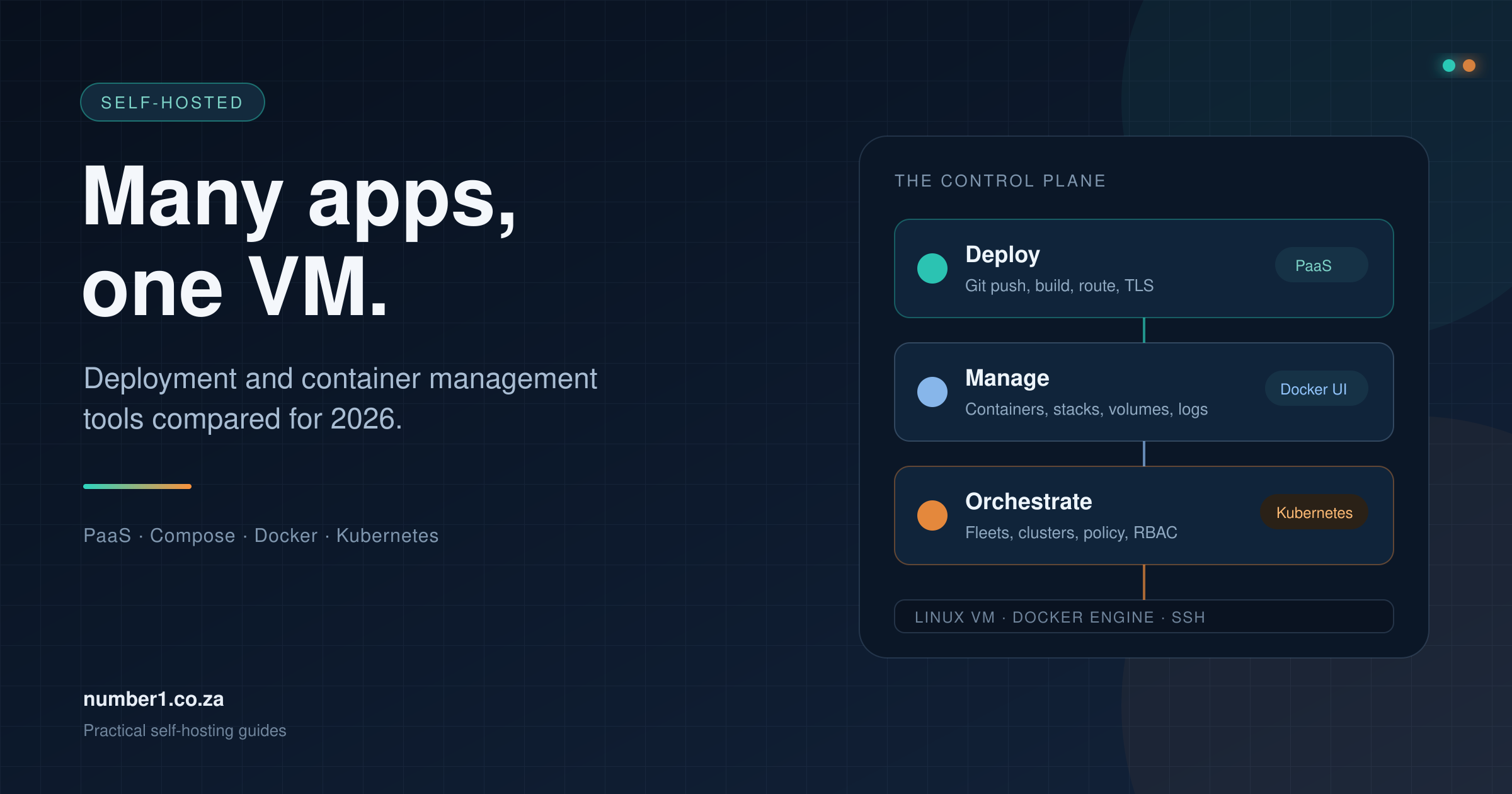
One Linux VM can run a dozen applications. The hard part is the control plane: the thing that builds them, routes traffic to them, renews certificates, backs up their data and tells you when one dies.
Hundreds of self-hosted tools promise to do that job. They look similar in a screenshot, then diverge on the details that matter: whether they deploy from Git, whether they manage one host or fifty, what licence they carry and how much RAM they leave for your apps.
This guide separates the tools by the job they do: deployment platforms, container management interfaces, and Kubernetes fleet management. It covers the established options and the newer tools worth knowing, with links to each project’s home page, documentation and repository. It closes with a decision table, a licence checklist, a security checklist and a default stack for a single VM.
The comparison draws on each project’s documentation, licence and release notes. It focuses on fit, not benchmark scores.
TL;DR
| Job | Start with | Why |
|---|---|---|
| Deploy apps from Git with the least setup | Dokploy | Light, clean UI, Docker Compose, Traefik, databases and backups in one place. |
| Largest feature set and service catalogue | Coolify | 360+ one-click services, four Git providers, preview deployments and the largest community. |
| Smallest reliable PaaS | CapRover | Runs on 1 GB RAM, uses Docker Swarm and nginx, and has a long production record. |
| Terminal-only deployment | Dokku or Kamal | Git push or CLI deploy, no dashboard, no control-plane database to maintain. |
| Edit and run Compose stacks | Dockge | File-based, Compose-first and easy to understand. |
| Modern Docker UI with backups and scans | Arcane or Dockhand | Arcane is BSD-3; Dockhand adds polish and commercial support under a BSL licence. |
| Docker and Kubernetes from one UI | Portainer | Broad platform support, but production use now means Business Edition. |
| Many Kubernetes clusters | Rancher | Fleet management, RBAC and project tenancy across clusters. |
| Everyday Kubernetes UI | Headlamp or k9s | Headlamp gives a web UI; k9s gives the fastest terminal workflow. |
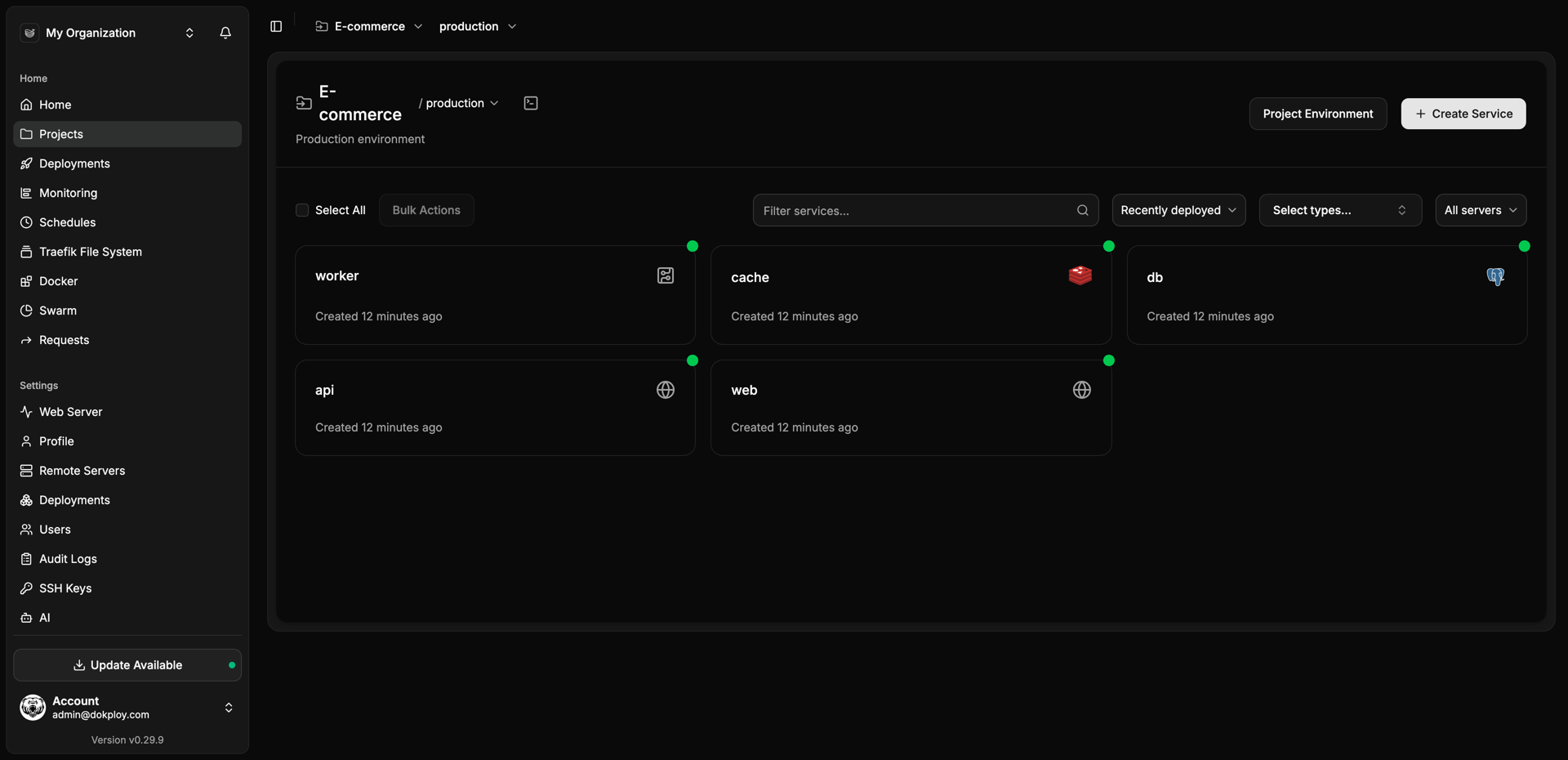
Dokploy groups services by project and environment. Screenshot: Dokploy.
The three jobs, not one
Most bad tool choices come from comparing products in different categories. A deployment platform, a container UI and a Kubernetes manager solve different problems, even when all three show a list of running containers.
Deployment platform (self-hosted PaaS)
A PaaS takes source code or a container image and turns it into a running service. It handles the build, the release, the reverse proxy, TLS certificates, domains, environment variables, databases and backups. You connect a Git repository, press deploy and get a URL. Dokploy, Coolify, CapRover, Dokku and Kamal sit here.
Container management interface
A container UI operates what is already running. It shows containers, images, volumes, networks, logs, terminals and Compose stacks, and it lets you start, stop or remove them. It rarely builds your application or provisions a database for you. Portainer, Dockge, Dockhand, Arcane, Komodo and Swarmpit sit here.
Kubernetes and cluster management
A cluster manager works above the container runtime. It registers clusters, applies policy, manages users and gives a view across many nodes. Rancher sits here. Headlamp and k9s are clients for Kubernetes rather than platforms that create clusters.
You can combine a PaaS with a container UI. Many people run Dokploy or Coolify and add Portainer for inspection. The mistake is letting two tools manage the same Compose stack: the files drift, one tool overwrites the other, and neither becomes the source of truth. Pick one control plane for each workload.
Self-hosted deployment platforms
These tools replace Heroku, Render or Vercel on hardware you control. They own the build and release path, so they need more access than a container UI: a Docker socket, a reverse proxy and usually a database for their own state.
Dokploy
Dokploy is a self-hosted PaaS built around Docker and Docker Compose. It deploys applications from Git, Dockerfiles, buildpacks or prebuilt images, provisions MySQL, PostgreSQL, MongoDB, MariaDB, libSQL and Redis, and routes traffic through Traefik. It also supports remote servers and Docker Swarm for multi-node deployments, scheduled jobs, database and volume backups, notifications, an API and a CLI.
The licence is Apache 2.0 for the core, with the code under /proprietary covered by a source-available licence that requires a commercial agreement for production use. The free edition covers most solo and small-team work. SSO, SCIM, audit logs and custom roles live in the paid enterprise tier.
Requirements: 2 GB RAM and 30 GB disk, with ports 80, 443 and 3000 free. The install script handles Docker.
curl -sSL https://dokploy.com/install.sh | shBest for: a developer or small team that wants a clean deployment UI on one VM, with a path to more servers through Swarm.
Watch out: Dokploy is the youngest of the three main PaaS options. Its multi-node story stops at Docker Swarm, and the enterprise features that larger teams need sit behind a commercial licence.
Coolify
Coolify is the most feature-dense option in this group. It deploys from GitHub, GitLab, Bitbucket and Gitea using Nixpacks, Railpack, Dockerfiles, Docker Compose or a prebuilt image. It provisions eight database engines, offers more than 360 one-click services, creates preview deployments for pull requests, keeps older images for rollback, and manages multiple servers over SSH. It also exposes an API, a CLI and an MCP endpoint.
Coolify is Apache 2.0 and free to self-host with every feature included. Coolify Cloud starts at $5 per month for two servers, plus $3 per additional server; your applications still run on your own infrastructure.
Requirements: 2 CPU cores, 2 GB RAM and 10 GB free disk. Coolify recommends a separate server for the control plane and your deployed resources, though a single VM works for smaller setups.
curl -fsSL https://cdn.coollabs.io/coolify/install.sh | bashBest for: teams that want the broadest feature set, a large template catalogue and a mature community. It suits people who prefer a polished product with many options over a minimal one.
Watch out: Coolify carries more moving parts than Dokploy or CapRover, including a Laravel application, queues and a database. Its multi-server feature places the same image on separate servers; it is not a cluster scheduler. Docker Swarm support is deprecated and will be removed in Coolify v5.
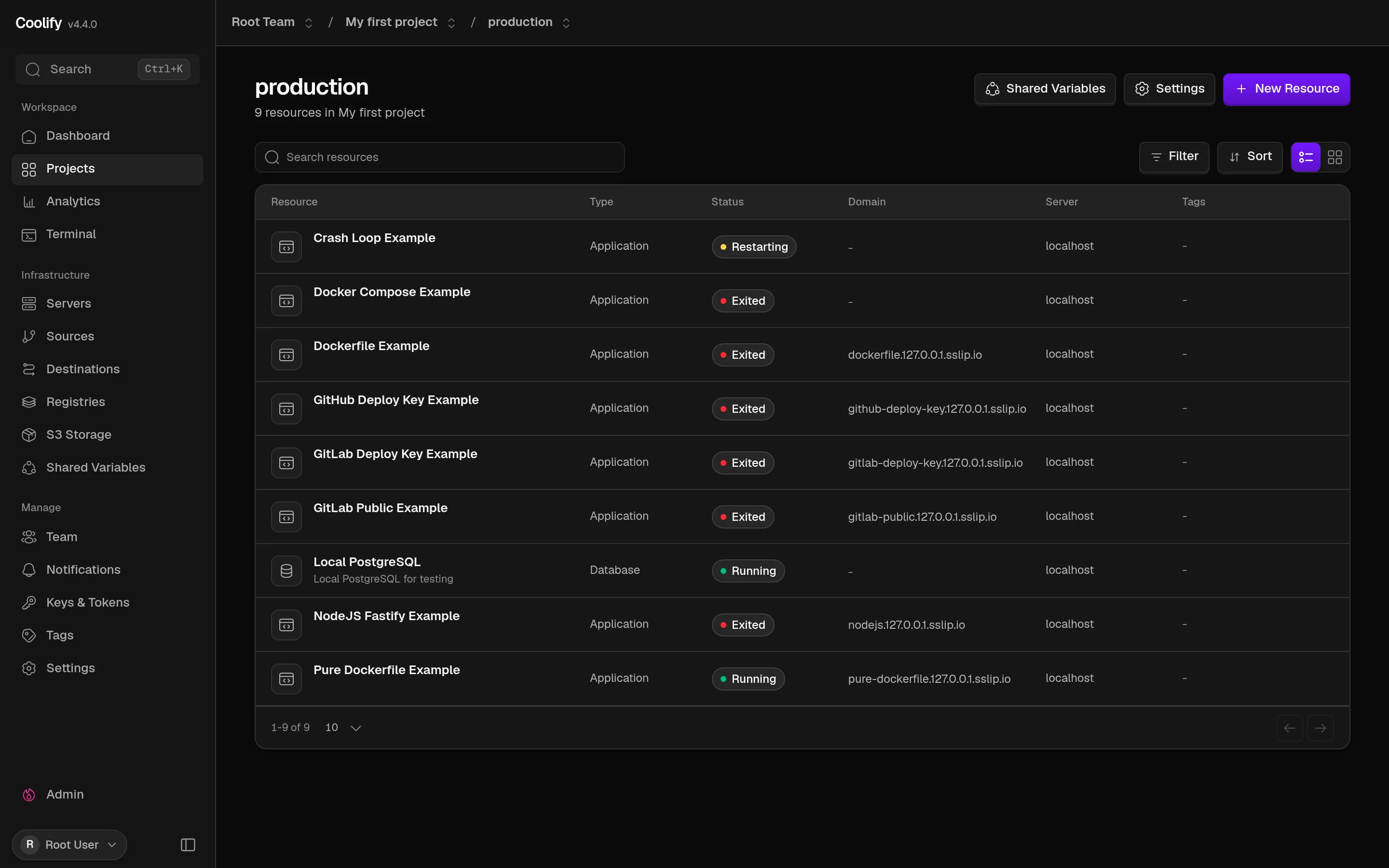
Coolify shows applications, databases and their domains in one project view. Screenshot: Coolify.
CapRover
CapRover is the veteran of the group. It puts a web interface and CLI in front of Docker Swarm, nginx and Let’s Encrypt, so you can deploy an app, attach a domain and get a certificate without editing nginx by hand. It supports one-click apps, persistent directories, instance counts, webhooks and a Captain Definition file for builds.
CapRover is Apache 2.0 with an appendix that restricts modification and redistribution of its paid features. The project has run since 2017 and has a long production record.
Requirements: 1 GiB RAM and 5 GiB free disk, with ports 80, 443 and 3000 open. The first login uses captain42, so change it immediately and set the root domain.
curl -fsSL https://get.caprover.com -o caprover-install.sh
sudo bash caprover-install.sh
Best for: a small VM, a homelab or a team that values stability over a modern interface. It is the lightest way to get a full PaaS with Swarm and automatic HTTPS. If you need a host, see my notes on the best value Linux VPS and VM options in South Africa.
Watch out: the interface feels dated next to Dokploy and Coolify. Docker Compose is not the core workflow; CapRover builds from a Dockerfile or image and manages Swarm services. Releases arrive less often than the newer projects.
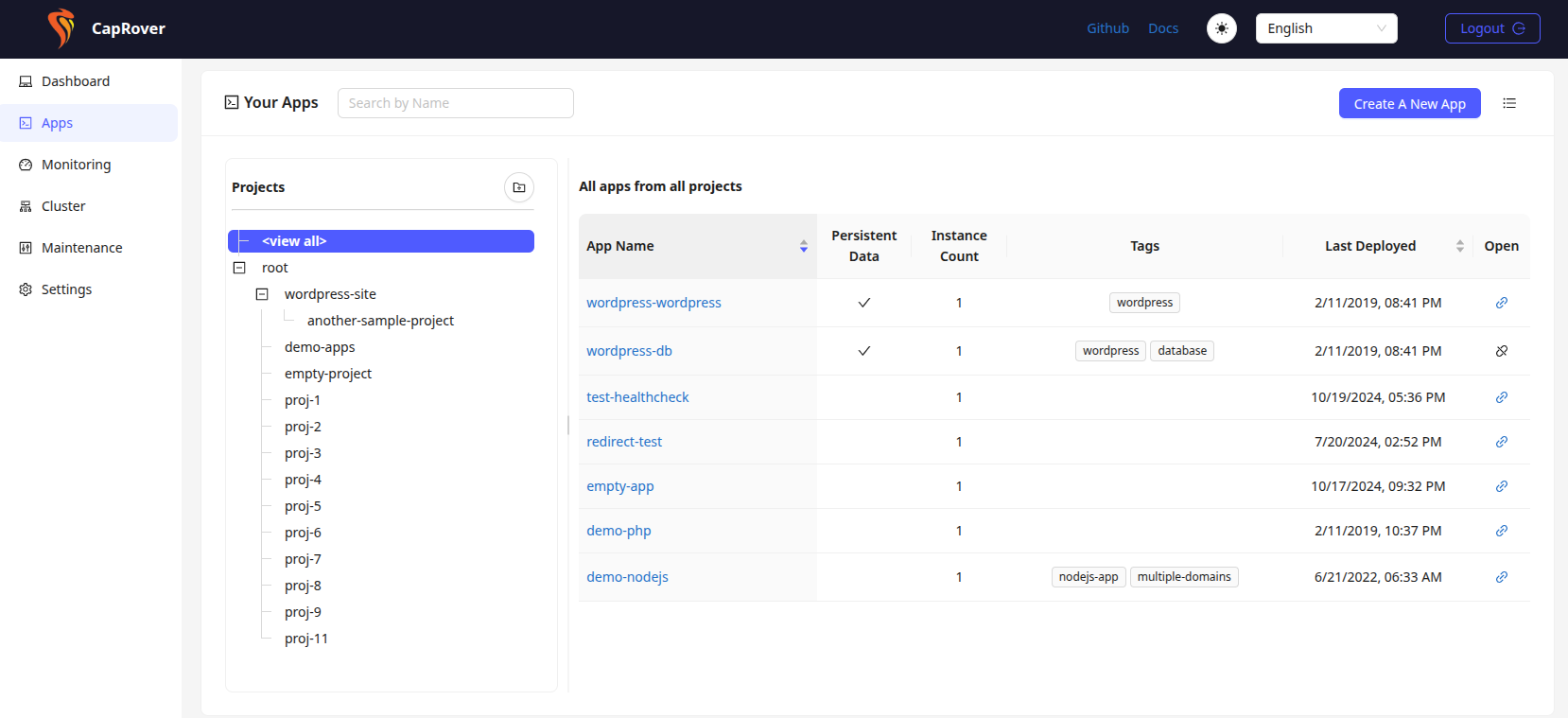
CapRover organises apps into projects and reports the last deploy. Screenshot: CapRover.
Dokku
Dokku is the smallest PaaS on the list: a single server, a Git remote and a command line. Push code and it builds with Heroku buildpacks, a Dockerfile, Nixpacks or Railpack, then runs the container behind a proxy. Plugins add databases, TLS, backups and schedulers. It has no web dashboard, which is the point.
Dokku is MIT licensed, has run since 2013 and carries a small, stable surface. It suits a developer who lives in a terminal and wants Heroku-style deploys without a control-plane UI.
Best for: one server, Git-push deployments and people who prefer a CLI.
Watch out: no GUI, and you add TLS, databases and backups through plugins. Multi-server support comes from scheduler plugins rather than the core product.
Kamal
Kamal takes a different approach: no control plane at all. You run it from your laptop or CI, and it connects to your servers over SSH. It builds the image, pushes it to a registry, starts a new container, waits for a health check and switches kamal-proxy to the new version. The configuration lives in a YAML file in your repository.
Kamal is MIT licensed and built by 37signals. It works with any Linux server that runs Docker, and it scales from one host to many with a load balancer in front.
Best for: teams that want repeatable deployments from CI without another service to host, patch and back up.
Watch out: no UI, no database provisioning and no scheduler. You own the proxy, the load balancer and the backup process.
Container management interfaces
These tools start where the deployment ends. They give you a view of running containers and the controls to operate them. Some also handle Compose deployments, Git sync or multi-host agents, which blurs the line with a PaaS.
Portainer
Portainer is the best-known Docker UI, and it covers the widest range of runtimes: Docker, Docker Swarm, Podman, Kubernetes and Azure ACI. It manages environments through agents or the Edge agent, shows container and host metrics, provides consoles and logs, and supports stacks, templates and webhooks.
The licence split matters more than the feature list. Portainer Community Edition is zlib licensed, and the project now describes CE as a tool for homelabs, learning and personal projects, without production support. Portainer Business Edition adds RBAC, GitOps, edge management, audit and SSO, and Portainer offers three free BE nodes.
Best for: a business that needs one UI across Docker and Kubernetes and will buy Business Edition. It also suits a homelab that accepts the CE support position. I compared OKD and Portainer in an earlier post.
Watch out: Portainer manages containers; it works beside a deployment platform rather than replacing one. Portainer positions the free edition for homelabs and learning, and the features that make it useful to a team sit in the paid tier.
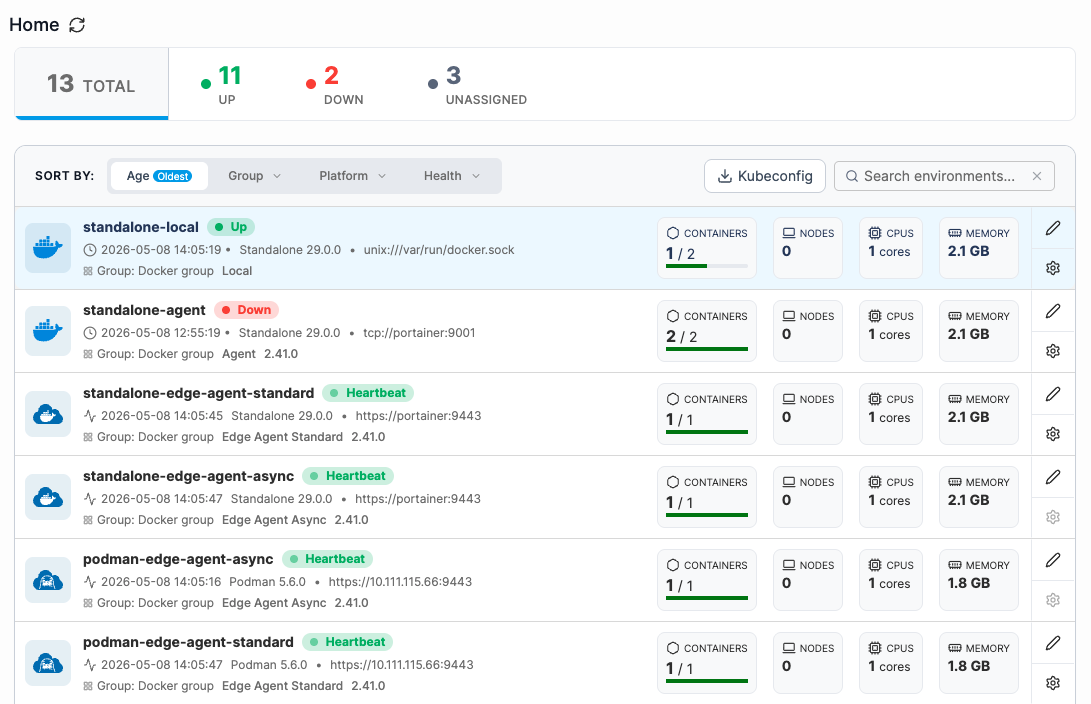
Portainer manages several Docker and Podman environments from one home screen. Screenshot: Portainer documentation.
Dockge
Dockge is a Compose-first manager. Each stack lives in a compose.yaml file on disk, and the UI edits, starts, stops and updates that file. It includes a live terminal, converts docker run commands into Compose files, and since version 1.4 can manage stacks across multiple Docker hosts through agents.
Dockge is MIT licensed. The project’s own documentation is clear about the trade-off: it focuses on Compose and leaves single containers, networks and the wider Docker API to Portainer or the CLI.
Best for: someone who already organises work in Compose files and wants a fast editor with a terminal beside it.
Watch out: the last stable release is 1.5.0 from March 2025. The repository still receives commits, but the release cadence is slow. Dockge offers a single login; team roles and per-stack permissions belong to other tools, so put it behind a VPN or an authenticated reverse proxy rather than exposing port 5001.
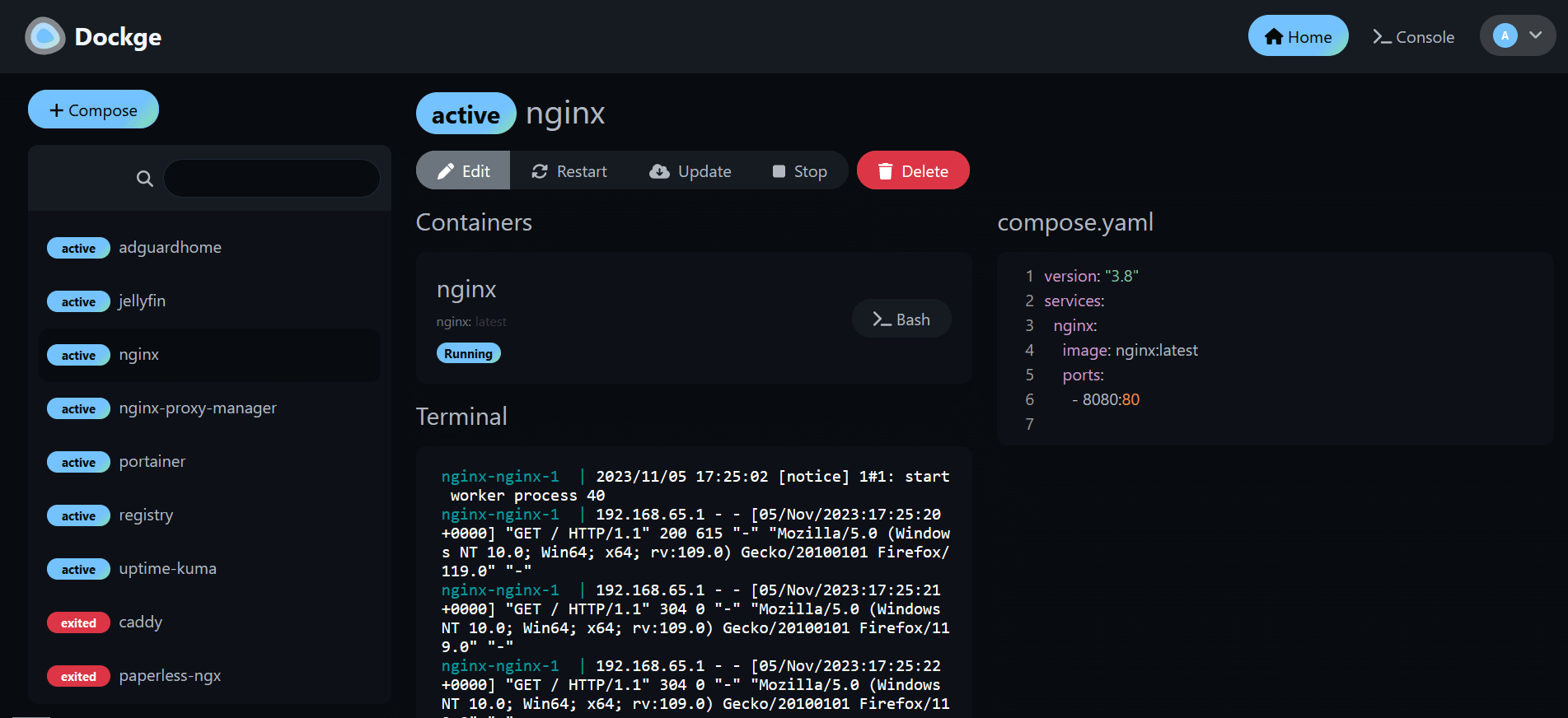
Dockge keeps each stack in a compose.yaml file and shows the terminal beside it. Screenshot: Dockge.
Dockhand
Dockhand is a newer Docker management UI with a broad feature set: container operations, a visual Compose editor, Git-based stack deployments, multi-environment support, an interactive shell, a file browser, scheduled updates, beta restic backups, vulnerability scanning and OIDC single sign-on. It runs as a single container with SQLite by default or PostgreSQL for larger installs.
The licence is the important detail. Dockhand uses the Business Source License 1.1. It is free for homelabs, personal projects, non-profits, schools and sole operators. Production use by a company or public body needs a commercial licence: $499 per host per year for SMB and $1,499 per host per year for Enterprise. Each released version converts to Apache 2.0 four years after release.
Best for: a homelab or small business that wants a polished Docker UI and is willing to pay for commercial production use.
Watch out: the BSL is a source-available licence, so OSI-style rights arrive four years after each release. The free edition gives every authenticated user full admin access; RBAC is an Enterprise feature. Read the licence before you deploy it for an organisation.
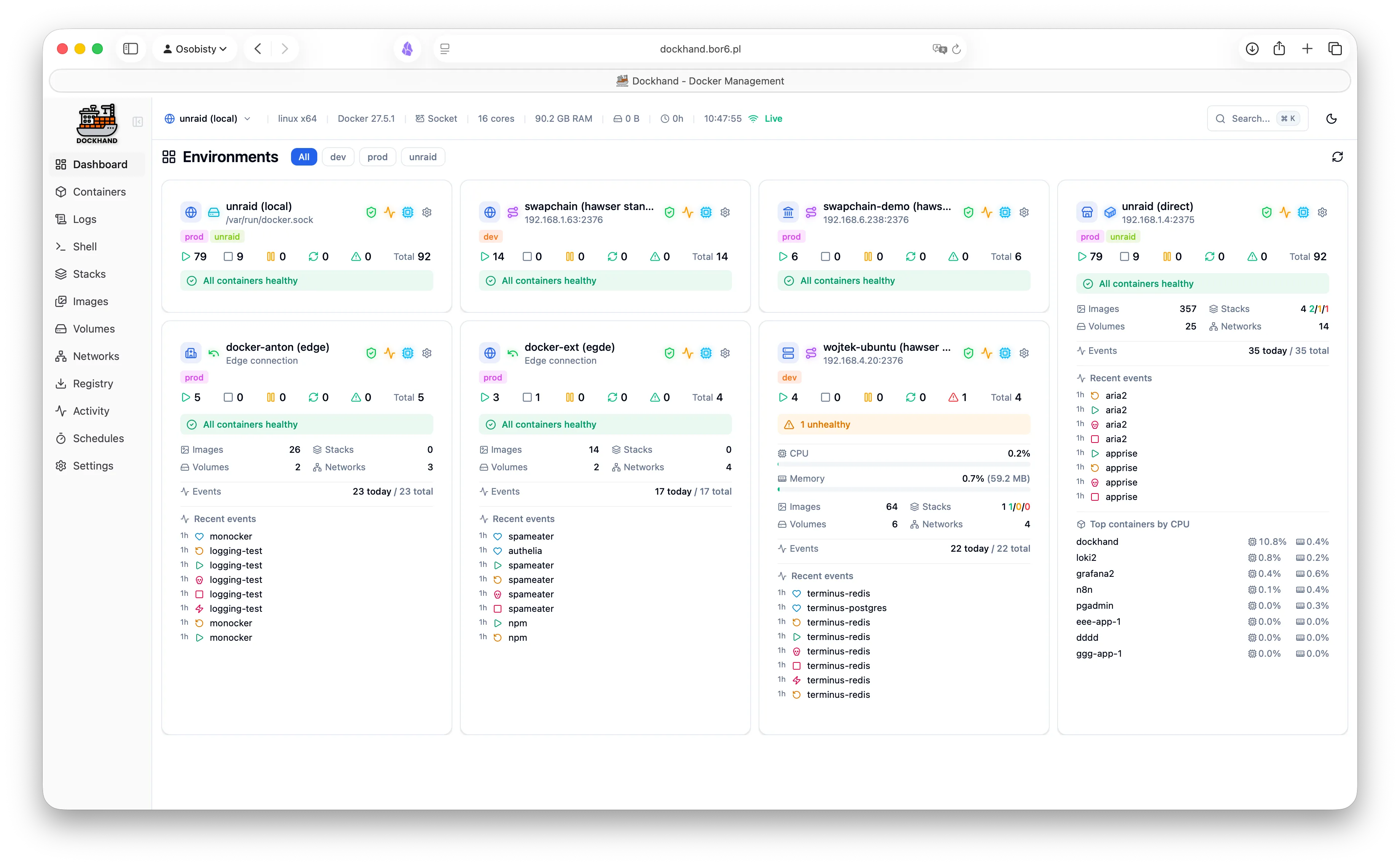
Dockhand shows every Docker host, its health and recent activity on one dashboard. Screenshot: Dockhand.
Arcane
Arcane is a modern Docker management UI with a clean interface and a serious feature list: projects, containers, images, volumes, networks, image builds, Git sync, lifecycle hooks, backups, auto-updates, templates, remote environments, Docker Swarm, Podman, OIDC, passkeys, role-based access, vulnerability scans and a socket proxy.
Arcane is BSD-3-Clause licensed, which makes it the most permissive of the modern Docker UIs. It is younger than Portainer, with a smaller community, but it moves quickly and covers the features most homelabs and small teams need.
Best for: an open-source Docker UI with modern authentication, multi-host support and a permissive licence for production.
Watch out: the project is young and the feature surface is large. Test upgrades before you rely on it for production, and use the built-in socket proxy rather than mounting the Docker socket directly.
Komodo
Komodo manages servers, builds, deployments and automation from one web application. A Core service provides the UI and API, and a small Periphery agent runs on each managed server. It deploys containers and Compose stacks, manages Docker Swarms, builds images, runs multi-step procedures on a schedule, and keeps an audit trail. It supports OAuth and OIDC, with granular role-based permissions.
Komodo is GPL-3.0 licensed. It fits the gap between a simple container UI and a full PaaS: more deployment control than Portainer, less application-framework magic than Coolify.
Best for: a team that manages several servers and wants builds, deployments and scheduled procedures without Kubernetes.
Watch out: it expects a database for Core (MongoDB or FerretDB) and an agent on every server. That is more infrastructure than a single-container UI, and the GPL licence matters if you plan to redistribute a modified version.
Swarmpit
Swarmpit is a lightweight management interface for Docker Swarm. It manages stacks, services, secrets, volumes and networks, supports private registries, exposes a REST API and ships an MCP server for agent-driven workflows. It is a focused tool for a Swarm cluster rather than a general Docker UI.
Swarmpit is EPL-1.0 licensed and installs with a Docker stack. It remains useful if you already run Swarm and want a simple console without adopting Kubernetes.
Best for: an existing Docker Swarm cluster that needs a small, focused UI.
Watch out: Swarm only. It does not manage standalone Docker hosts or Kubernetes, and the project’s release cadence is modest.
Kubernetes and cluster management
Kubernetes changes the problem. You stop managing containers on a host and start managing desired state across a cluster. The tools below either manage clusters or give you a window into them.
Rancher
Rancher is a Kubernetes management platform for organisations that run more than one cluster. It registers existing clusters, provisions RKE2 and K3s clusters, organises users and projects, applies RBAC, and gives one dashboard across environments. Rancher is Apache 2.0; SUSE sells Rancher Prime with support, training and a curated application catalogue.
The resource requirements set expectations. SUSE sizes a small upstream Rancher cluster at 4 vCPU and 16 GB RAM per node, with capacity for up to 150 clusters and 1,500 nodes. That is a platform team’s tool, not something you bolt onto a 2 GB VPS beside your blog.
Best for: platform teams that run Kubernetes in production and need central governance across clusters.
Watch out: Rancher adds concepts, components and operational work. A single VM running Docker Compose does not need it.
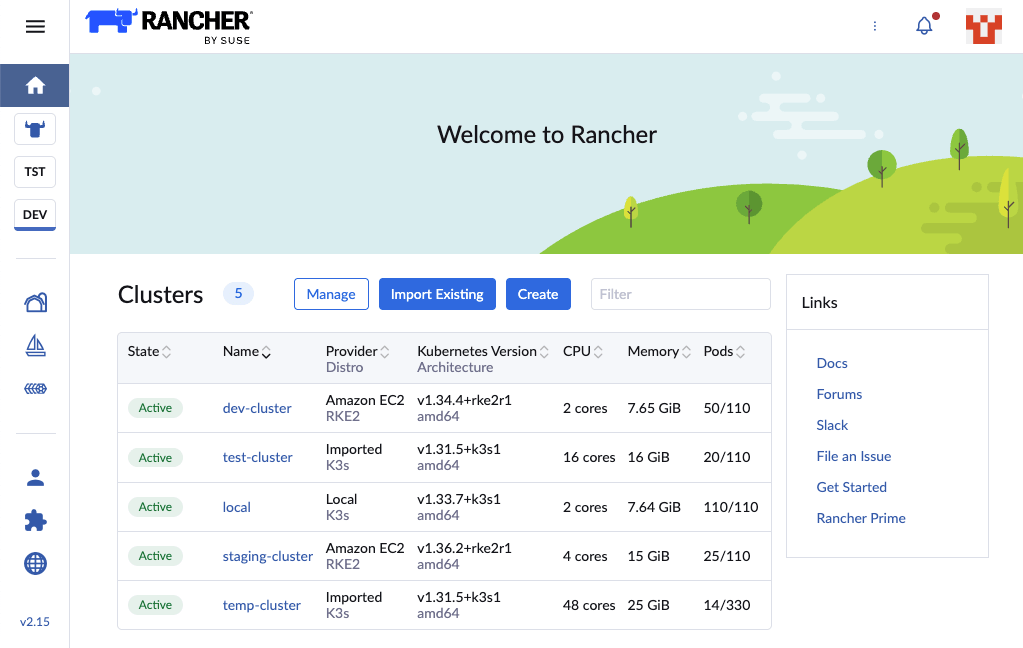
Rancher lists downstream clusters, their Kubernetes versions and node counts. Screenshot: Rancher.
Headlamp
Headlamp is a Kubernetes web UI developed under the Kubernetes SIGs umbrella. It runs inside a cluster or as a desktop application, supports multiple clusters, respects Kubernetes RBAC, and extends through plugins. It offers logs, a terminal, a resource editor and a clean overview of workloads.
Headlamp is Apache 2.0. It is the natural replacement for the retired Kubernetes Dashboard, and it works well as a day-to-day UI for one cluster or a handful.
Best for: a modern, vendor-neutral Kubernetes UI that respects existing permissions.
Watch out: it is a UI, not a cluster manager. It will not provision clusters, install ingress controllers or manage cloud resources.
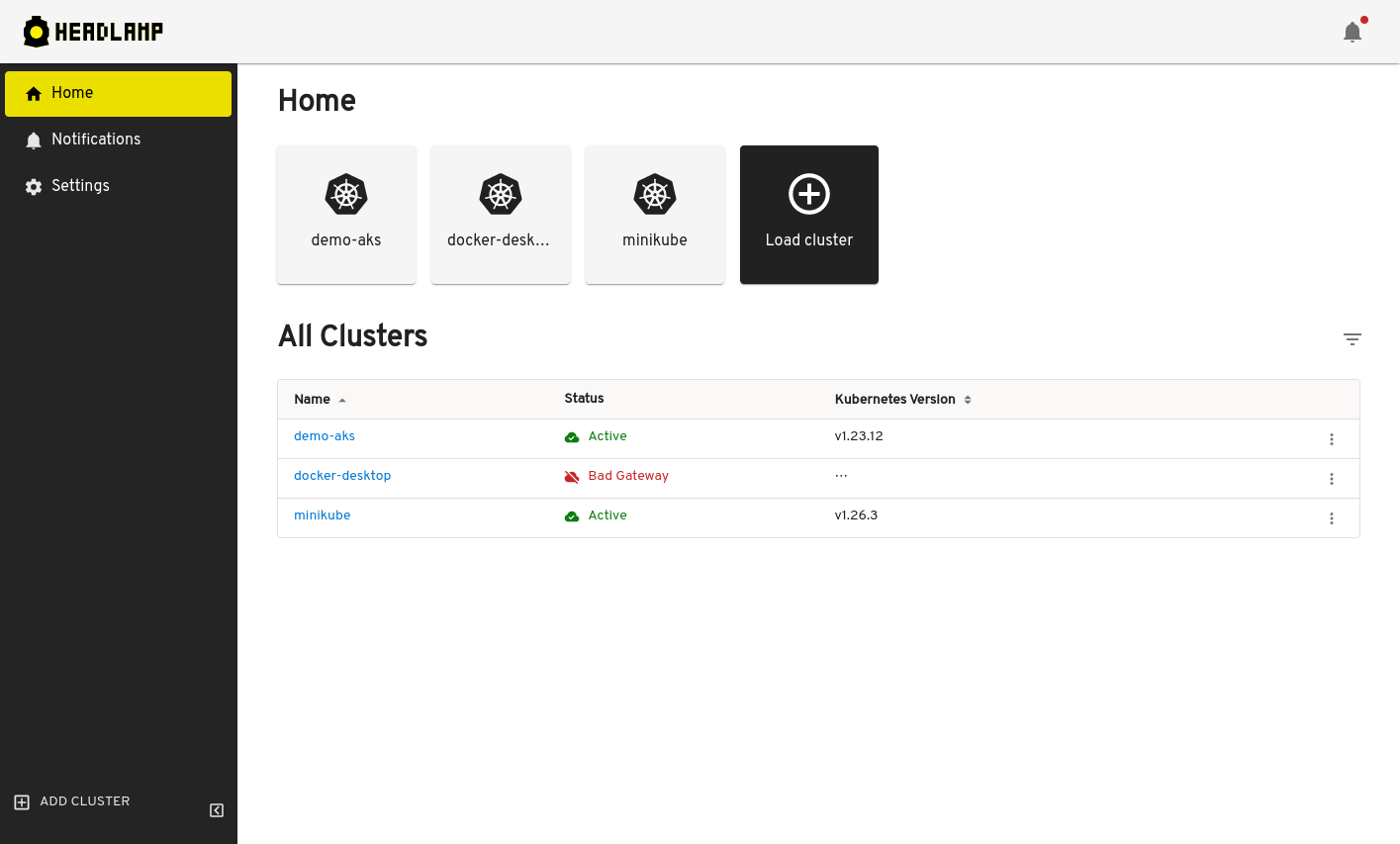
Headlamp runs in the cluster or on the desktop and switches between clusters. Screenshot: Headlamp.
k9s
k9s is a terminal UI for Kubernetes. It watches the API server, updates resource views in real time, and gives you keyboard shortcuts for logs, shells, edits, scaling and port forwarding. It is the fastest way to move around a cluster once you know the keys.
k9s is Apache 2.0 and ships as a single binary. It runs on Linux, macOS and Windows, and it works with any cluster your kubeconfig can reach.
Best for: operators and developers who spend their day in a terminal and want less latency than a web UI.
Watch out: terminal only, with a learning curve. It also assumes you already understand Kubernetes resources.
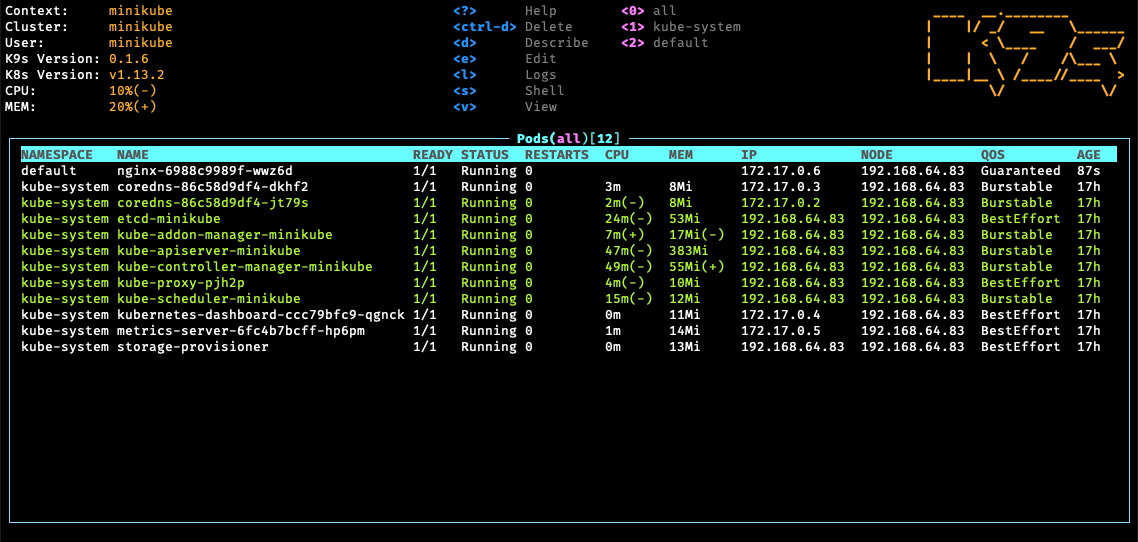
k9s puts pods, logs and resource actions in the terminal. Screenshot: k9s.
Kubernetes Dashboard is retired
The upstream Kubernetes Dashboard repository is archived. The project now lives under kubernetes-retired, which means it no longer receives fixes or releases. Run Headlamp instead if you want a web UI, or use k9s if you want a terminal client. Keep the old Dashboard only where it already runs and you accept the risk.
Comparison table
| Tool | Category | Licence | Deploy from Git | Multi-host | Best fit |
|---|---|---|---|---|---|
| Dokploy | PaaS | Apache 2.0 core, source-available enterprise | Yes | Remote servers, Swarm | Clean single-VM PaaS with room to grow |
| Coolify | PaaS | Apache 2.0 | Yes, four providers | Multiple servers, no scheduler | Feature depth and service catalogue |
| CapRover | PaaS | Apache 2.0 with appendix | Yes | Swarm | Small, stable, low-resource PaaS |
| Dokku | PaaS | MIT | Git push | Single server, scheduler plugins | Terminal-only Heroku replacement |
| Kamal | Deploy CLI | MIT | From CI or laptop | SSH to many servers | No control plane, CI-driven deploys |
| Portainer | Container UI | Zlib; BE paid | BE GitOps | Agents and Edge | Docker and Kubernetes in one UI |
| Dockge | Container UI | MIT | No native Git | Agents | Compose-only stack editing |
| Dockhand | Container UI | BSL 1.1 | Yes | Socket, TCP, agent | Polished Docker UI with backups and scans |
| Arcane | Container UI | BSD-3-Clause | Git sync | Agents and edge | Open-source modern Docker UI |
| Komodo | Container and build management | GPL-3.0 | Yes | Core and Periphery agents | Builds, deploys and procedures across servers |
| Swarmpit | Container UI | EPL-1.0 | No | Swarm only | Existing Swarm clusters |
| Rancher | Cluster management | Apache 2.0 | GitOps via Fleet | Many Kubernetes clusters | Multi-cluster governance |
| Headlamp | Kubernetes UI | Apache 2.0 | No | Multiple clusters | Web UI for Kubernetes |
| k9s | Kubernetes UI | Apache 2.0 | No | Multiple clusters | Terminal workflow |
How to choose
Start with the constraint that hurts today, not with the longest feature list.
You have one small VPS and a handful of apps
Choose CapRover when RAM is tight and you want a proven, simple PaaS. Choose Dokploy when you want a modern interface, Docker Compose and a clear path to a second server. Choose Coolify when you want the biggest template catalogue, preview deployments and the largest community, and you have the RAM to spare.
You already have Compose files and want to keep them
Choose Dockge. It treats the compose.yaml file as the source of truth and stays out of the way. If you need multiple hosts, backups and scheduled updates, look at Komodo, Arcane or Dockhand instead.
You run a team with staging and production
Start with Coolify or Dokploy and plan the governance work early: SSO, per-user permissions, audit logs, off-host backups and a documented restore test. Both projects put some of that behind a paid tier. If you need production support and a single UI across Docker and Kubernetes, price Portainer Business Edition.
You run Kubernetes
Use Rancher when you manage several clusters and need central policy and access control. Use Headlamp for a web UI and k9s for terminal work. Use the retired Kubernetes Dashboard nowhere new.
You want deploys without a control plane
Choose Kamal or Dokku. Kamal deploys from CI over SSH and leaves no service to patch. Dokku gives you a Git remote and a CLI on one server. Both keep the application definition in your repository, which makes the exit path simple.
What to check before you commit
Licence and production rights
Read the licence before the feature list. Portainer CE is homelab-only by the project’s own description. Dockhand needs a commercial licence for production use by a company. Dokploy’s enterprise code is source-available rather than Apache 2.0. Coolify, CapRover, Dokku, Kamal and Dockge are free to self-host, but their licence terms still matter if you modify or redistribute them.
Control-plane backups
The control plane holds your deployment definitions, environment variables and database credentials. Back up its database and configuration to a different machine, and test a restore. A backup you have never restored is a hope, not a backup.
Authentication and exposure
Every tool here can create and delete containers. That is root-equivalent access to the host. Put the UI behind a VPN, an identity-aware proxy or SSO. Keep the Docker socket and unauthenticated panels off the public internet. Where the tool supports a socket proxy, use it and grant only the API sections it needs. For an identity provider in front of these panels, see lightweight IDPs: authentik, Zitadel and Authelia.
Persistent data
Containers are disposable; volumes are not. Decide where databases, uploads and configuration live before the first deploy. Back up volumes and database dumps to storage outside the VM. Test a restore on a clean host.
Scaling model
A single VM has a hard ceiling. Dokploy and CapRover add nodes through Docker Swarm. Coolify places the same image on separate servers but does not schedule workloads like Kubernetes. Komodo manages many servers through agents. Rancher manages many Kubernetes clusters. Pick the model that matches your next year, not your next week.
Exit path
Keep the application definition in files you control: Dockerfiles, Compose files, environment files and database dumps. A good platform makes migration easy because the underlying artefacts are standard. A bad one hides them in a proprietary database.
A sensible default stack for one VM
For a single VM running a mix of web apps, databases and background jobs, this stack covers the basics without adding a second control plane:
- Host: Ubuntu 24.04 LTS, 4 vCPU, 8 GB RAM, 80 GB disk. Start smaller if you must, but leave room for builds and database growth. My guide to where long-running Docker Compose apps live on a VPS covers the layout.
- Deployment: Dokploy for a clean UI and Compose support, or Coolify if you want the larger catalogue.
- Routing and TLS: the Traefik instance that ships with the platform. Point DNS at the VM and let it issue certificates.
- Backups: database and volume backups to S3-compatible storage on another provider. Keep a local copy for fast restores. My guide to self-hosted storage with MinIO covers the object-storage side.
- Remote access: Tailscale or Cloudflare Tunnel for the admin panel. Keep ports 3000, 8000 and 9443 off the public internet.
- Monitoring: Uptime Kuma for external checks, plus the platform’s own container metrics.
- Optional: Arcane or Dockge for read-mostly inspection. Keep one tool responsible for each Compose stack.
That setup gives you one place to deploy, one place to route traffic and one backup path. It stays understandable when something breaks at 02:00.
My picks
Best overall for a single VM: Dokploy. It is light, clean and covers the deployment basics without forcing you into Kubernetes. Choose Coolify instead if the service catalogue, preview deployments and larger community matter more than a smaller footprint.
Best for Compose files: Dockge. It does one job and does it well. Add Arcane or Komodo when you need multi-host operations, backups or scheduled updates.
Best modern Docker UI: Arcane for an open-source licence and a broad feature set. Dockhand if you want a polished product, commercial support and you are willing to pay for production use.
Best for a business running Docker and Kubernetes: Portainer Business Edition. Production belongs to the paid edition.
Best for Kubernetes fleets: Rancher for management, Headlamp for a web UI and k9s for the terminal. Skip the retired Kubernetes Dashboard.
FAQ
Is Portainer a PaaS?
No. Portainer manages containers, stacks and Kubernetes resources. It does not build your application from source, provision a database or run a full deployment workflow in the way Dokploy, Coolify or CapRover do.
Can I run Dokploy and Portainer together?
Yes. Many people use the PaaS for deployments and Portainer for inspection. Keep one tool responsible for each stack. If both write the same Compose file, they will drift.
Which tool is lightest?
Dokku and Kamal have no control-plane UI and the smallest footprint. CapRover is the lightest full PaaS with a dashboard, at 1 GiB RAM minimum. Dockge and Arcane are small Docker UIs.
Do I need Kubernetes?
Only when you need scheduling, self-healing across nodes, autoscaling or a standard platform across several teams. A single VM with Docker Compose runs a surprising number of applications without it. Kubernetes adds a control plane, networking, storage and a new set of failure modes.
How do I migrate between these tools?
Keep the application in a Dockerfile or Compose file, export the environment variables, copy the volumes and database dumps, then change DNS. The platform should be replaceable because the application artefacts are standard. Test the restore before you switch DNS.