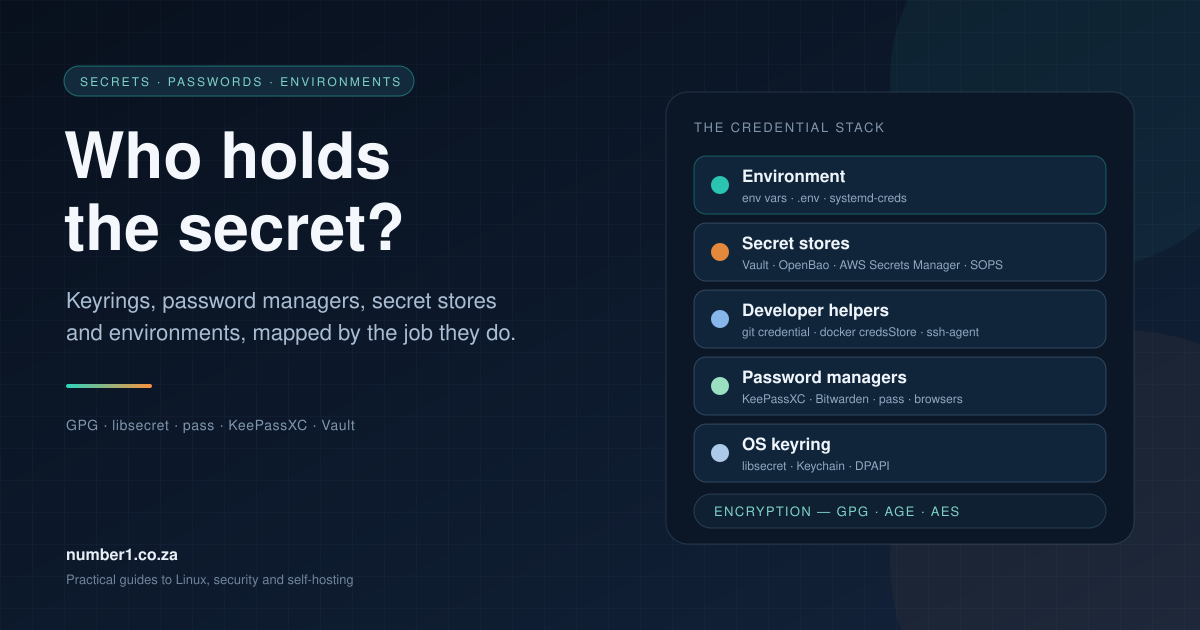
Does this sound familiar? You hold a password, an API key, a token or a connection string but do not know the right home for it. The advice is wide: use a password manager, use the keyring, use environment variables, never use environment variables, run Vault, Vault is overkill.
Each piece of advice answers a different question. The trouble is that “Secret” covers four jobs that need four different tools.
- A person proving who they are to a website or an app. The right tool is a password manager.
- A tool borrowing that person’s credential: git push, docker pull, ssh. The right tool is a credential helper backed by the operating system keyring, because a human is still there to unlock it.
- A workload proving its own identity and fetching a credential with nobody present. The right tool is a secret store: Vault, OpenBao, AWS Secrets Manager or Bitwarden Secrets Manager along with a client to do the fetching.
- Protecting bytes at rest, which underlies the other three. The right tool is encryption: GPG, age, a KMS or a database format such as KDBX.
This is part one of two. It covers the tools a person touches: encryption, the operating system keyring, password managers, the credential helpers that connect them and the password stores inside your browser. Part two covers machines: Vault, cloud secret managers, SOPS, Kubernetes and environments.
1. The four jobs and the two questions that sort them
Ask two questions about any credential and the tool choice becomes obvious.
Who holds it? Human or Machine.
Who unlocks it? A person at a keyboard, the operating system at login, a hardware token or an identity the platform already trusts.
Ownership decides the answer. A tool on your laptop borrows your credential and you are still there to unlock the keyring. A service carries its own identity and has nobody at the keyboard.
| Job | Who uses it | What good looks like | Typical tools |
|---|---|---|---|
| Website and app logins | One person | One entry per site, autofill, a breach check | KeePassXC, Bitwarden, browser manager, pass |
| A tool borrowing your credential | One person, on one machine | Prompt once, store in the OS keyring, never in a file | git-credential-libsecret, osxkeychain, wincred, Git Credential Manager |
| A workload’s own credential | A service, with no human present | Short-lived credentials, audit trail, rotation, least privilege | Vault, OpenBao, AWS Secrets Manager, Bitwarden Secrets Manager |
| Secrets in a repository | A team, through Git | Encrypted values, readable structure, reviewable diffs | SOPS with age or GPG, Sealed Secrets |
| Secrets in a process | The operating system | Inherited at start, invisible on disk | Environment variables, systemd-creds, mounted files |
The last three rows belong to part two. This part works down the first two, then through the stores people use directly.
2. Layer 0: encryption, the floor everything stands on
No password manager invents cryptography. They all wrap a small number of primitives (building blocks to something greater): a symmetric cipher, a key derivation function to turn a passphrase into a key and often a public-key step so one machine can encrypt for another.
GPG (GnuPG)
GnuPG implements the OpenPGP standard. It encrypts and signs files and email, manages keys and trust and provides the encryption underneath pass, SOPS, signed Git tags and release checksums.
Who uses it: Linux and BSD users, package maintainers, journalists, anyone who needs signed releases or encrypted email. Debian and Fedora developers live inside it.
Where it fits: GPG encrypts a file to a set of public keys. It does not decide who may read what next month and it keeps no audit log. Teams that treat a GPG keyring as a secret manager discover the gap when someone leaves and nobody remembers which files were encrypted to their key.
Where it does not: as a general secrets manager for a team and as an automation dependency. gpg-agent wants a passphrase prompt or a cached key, which is awkward in CI and worse in a container. Rotating one recipient means decrypting and re-encrypting everything that person could read.
age
age is a modern file encryption tool with a deliberately small design: one recipient format, one key format, no web of trust, no key server. It encrypts to an X25519 public key or an SSH key and it supports a passphrase mode. Because the format is simple, age has become the default companion for SOPS, pass-style workflows and release artifacts.
Who uses it: developers who want encryption without GPG’s ceremony and teams that already have SSH keys and want to reuse them.
Where it does not: signing, identity verification and email. Age encrypts; it does not attest.
3. Layer 1: the operating system keyring
Every desktop operating system ships a per-user encrypted store that unlocks when the user logs in. Applications use it so users do not retype passwords and so credentials never sit in a plain file. This is the layer most people never see and the one most tools quietly depend on.
Linux: the Secret Service API and libsecret
The Secret Service API is a D-Bus interface, org.freedesktop.Secret.Service, defined by freedesktop.org. A client asks a running service to store an item with a label, a set of lookup attributes and a secret value. GNOME Keyring and KWallet implement the service; libsecret is the C library that talks to it, with bindings for Python, JavaScript and others.
Anything written against libsecret therefore works on GNOME, KDE, XFCE and most other desktops, because the desktop supplies an implementation rather than the app.
# Store a value
secret-tool store --label="Deploy token" service deploy environment production

# Read it back
secret-tool lookup service deploy environment production

# Find what is stored
secret-tool search --all service deploy
Who uses it: desktop applications. Chrome and Chromium use it as the encryption backend for saved passwords on Linux. NetworkManager keeps Wi-Fi keys there. Evolution keeps mail passwords there. git-credential-libsecret and docker-credential-secretservice connect Git and Docker to it. VS Code stores tokens there.
Where it fits: a machine with a graphical login session and a running keyring daemon.
Where it does not: servers, containers and CI. A headless box has no session bus, so there is nothing for libsecret to talk to. Tools that assume a keyring fail with a D-Bus error and the usual workaround, an unlocked keyring at boot, gives away the protection the keyring was supposed to provide.
macOS: the Keychain and the osxkeychain helper
macOS keeps keychain items in a SQLite database managed by the securityd daemon. Each item carries a metadata key and a per-row secret key, both AES-256-GCM. The metadata key is cached in the application processor for fast searches; the secret key always makes a round trip through the Secure Enclave. Access control lists decide which applications may read an item and can require Touch ID or the login password.
The login keychain unlocks when you log in. The security command-line tool reads and writes it:
security find-generic-password -s "deploy-token" -w
security add-generic-password -s "deploy-token" -a "$USER" -w
Who uses it: every Mac application that saves a password, plus Safari and iCloud Keychain, which syncs items end to end between devices. git-credential-osxkeychain and docker-credential-osxkeychain put Git and Docker credentials in the same place.
Where it fits: a Mac with a logged-in user.
Where it does not: a build agent or a remote server. Unlocking a keychain from a script means storing the keychain password somewhere, which moves the problem rather than solving it.
Windows: Credential Manager and DPAPI
Windows Credential Manager is a per-user vault for generic and domain credentials. You reach it through Control Panel or through cmdkey:
cmdkey /list
cmdkey /generic:deploy-token /user:ci /pass
Underneath sits DPAPI. CryptProtectData derives an encryption key from the user’s logon credentials, so the ciphertext is readable only by that user on that machine, with a roaming-profile exception. A CRYPTPROTECT_LOCAL_MACHINE flag widens access to every user on the box, which suits a service account and ruins the isolation for anything else.
Who uses it: Chrome and Edge use DPAPI to encrypt their local password databases. git-credential-wincred and docker-credential-wincred store Git and registry credentials. PowerShell’s SecretManagement module with the SecretStore extension gives scripts a similar home.
Where it fits: interactive Windows sessions and services running as a dedicated account.
Where it does not: shared machines and cross-machine automation. DPAPI binds ciphertext to one user profile on one machine, so a copied file decrypts nowhere else.
| Platform | Store | API | Command line | Git helper | Docker helper |
|---|---|---|---|---|---|
| Linux desktop | GNOME Keyring or KWallet | Secret Service over D-Bus | secret-tool |
libsecret |
secretservice |
| macOS | Keychain | Security framework | security |
osxkeychain |
osxkeychain |
| Windows | Credential Manager | DPAPI, Credential APIs | cmdkey |
wincred |
wincred |
| Linux server | None | None | None | Use GCM or pass |
Use pass |
Read a row left to right to see how one platform stores a credential and which helper reaches it.
4. Layer 2: the plumbing between tools and stores
Most credentials never touch a password manager directly. A tool asks a helper and the helper asks the keyring or the store. Getting this layer right removes the worst habit in software: writing secrets into configuration files.
Git credential helpers
Git calls a helper with get, store or erase, passing a URL context. Helpers ship with Git or with the platform:
| Helper | Where the secret goes | Use it when |
|---|---|---|
cache |
Memory, with a timeout | You want a short session and no persistence |
store |
~/.git-credentials, plaintext |
Almost never |
libsecret |
Secret Service keyring | Linux desktop |
osxkeychain |
macOS Keychain | macOS |
wincred |
Windows Credential Manager | Windows |
| Git Credential Manager | Platform keyring, with OAuth | Any platform and the default with Git for Windows |
The middle column carries the risk: cache keeps the token in memory, store writes it to disk.
store deserves its reputation. It writes the token in plaintext to a file that survives reboots, backups and laptop thefts. Treat it as a debugging tool.
Who uses this layer: anyone who runs git push over HTTPS. Set the helper once per machine and forget it:
git config --global credential.helper libsecret        # Linux
git config --global credential.helper osxkeychain      # macOS
git config --global credential.helper manager          # Git Credential Manager
Git Credential Manager goes further and authenticates through the browser with OAuth, so the token is short-lived and refreshable. For GitHub, GitLab and Azure DevOps, that beats a personal access token pasted into a helper.
Docker credential helpers
docker login writes registry credentials to ~/.docker/config.json. With no credential store configured, it writes them base64-encoded, which is encoding, not encryption. With a store configured, it hands them to an external helper instead.
{
  "credsStore": "pass",
  "credHelpers": {
    "registry.example.com": "secretservice"
  }
}
Docker looks for a platform default when you configure nothing: osxkeychain on macOS, wincred on Windows and on Linux pass first, then secretservice. Docker Desktop sets this up for you. On a Linux server, install the helper binary before you rely on it or Docker silently falls back to the plain file.
Where it does not: shared build machines. A credential store keeps one user’s registry login; a CI runner needs a scoped token injected at run time, not a stored login.
SSH agent and gpg-agent
An SSH agent holds decrypted private keys in memory and signs authentication challenges on request, so the key never leaves the agent and the passphrase is typed once. gpg-agent does the same job for GPG keys and can serve as an SSH agent too.
Who uses it: every developer who connects to a server and every deploy pipeline that needs a key.
Where it fits: pushing to Git over SSH, deploying with Ansible, hopping between hosts.
Where it does not: blind agent forwarding. Forwarding your agent to a remote host lets anyone with root there use your keys while the connection is open. Prefer short-lived SSH certificates or ProxyJump, which keeps the agent local. If you must forward, add confirm-on-use so each signature needs a keypress.
5. Five ways a desktop holds a credential
The layers above supply the machinery. Day to day you choose one of five containers and each draws on those layers differently: pass is a file format over GPG, the keyring is the operating system’s service and a vault brings its own cipher. They differ in one question: what must an attacker have before they can read the secret?
| Container | Where the secret sits | What unlocks it | Headless | Use it for |
|---|---|---|---|---|
| Plain file | ~/.git-credentials, .env, ~/.pgpass |
Nothing | Yes | Git tokens you would not mind publishing |
| Process memory | credential.helper cache, ssh-agent |
A session, with a timeout | Yes | One working day |
| OS keyring | Secret Service, Keychain, Credential Manager | Your login session | No | Desktop apps and their helpers |
| GPG file | ~/.password-store |
Your GPG key and its passphrase | Yes | Terminals, servers, a versioned store |
| Vault file | A KDBX database or a vendor’s server | Master password, key file, hardware token | Yes | Everything a person owns |
Read the Headless column first, because it removes most desktop options.
Plain text: the git store
git config --global credential.helper store writes the token to ~/.git-credentials in plain text. The file is mode 0600, which keeps out other users on the same machine and nobody else. Any process running as you reads it, every backup and sync of your home directory carries it and a dotfiles repository will publish it.
The same pattern appears under other names: a .env file, ~/.pgpass, a token pasted into a URL in .git/config. That last one deserves its own warning, because https://user:token@host/repo.git also lands in shell history and in the output of git remote -v.
What an attacker needs: read access to your home directory. Nothing more.
Memory: the cache helper
credential.helper cache holds the credential in a daemon for 15 minutes by default, then forgets it. It leaves no file, survives no reboot and costs nothing to set up. The trade is that a long script gets re-prompted halfway through, which is why people drift back to store.
What an attacker needs: to be running as you while the cache is warm.
OS keyring: libsecret, Keychain, Credential Manager
This is the layer described above: a service that holds the secret and unlocks with your login. Git and Docker reach it through libsecret, osxkeychain or wincred. The secret is encrypted at rest, tied to your account and available to every application in your session.
That last clause is the catch. The keyring’s threat model is another user and a stolen disk, not a program running as you. Anything in your session can ask it for the same secret your browser uses, subject to whatever prompt the keyring decides to show.
What an attacker needs: your unlocked session or your login password plus the keyring file.
GPG file: pass
pass keeps one GPG-encrypted file per entry, so the protection is the key rather than the login. The store works on a headless server, versions in Git and needs no daemon. The cost is key discipline: lose the private key and the store is gone; add or remove a recipient and every file is re-encrypted. gopass is the actively developed fork and adds team features and age as an alternative to GPG. The last tagged release is 1.7.4 from 2019, so what your distribution ships carries the patches.
Two habits matter. pass -c copies to the clipboard, which other applications can read and clipboard history keeps a copy. pass show writes plaintext to standard output, where it ends up in scrollback, a pipe or a log if you are careless.
What an attacker needs: your GPG private key and its passphrase or a gpg-agent that has already cached the unlock.
Vault file: KeePassXC, Bitwarden, 1Password
A vault adds a master password of its own, so the secret is protected by something you know rather than by the machine you sit at.
KeePassXC keeps a local KDBX database: AES-256 or Twofish behind a key derivation function that makes guessing the master password expensive, with an optional key file or a YubiKey in challenge-response mode. The file syncs through Nextcloud, Syncthing or a USB stick, the browser extension reaches it over native messaging and keepassxc-cli gives scripts read access. Version 2.8.0 shipped in October 2026. Auto-Type, which types a password into a window for you, works on X11 only.
Bitwarden and 1Password keep the vault on a server, which buys sharing, audit events and recovery at the cost of a network dependency. Bitwarden is zero-knowledge and open source, self-hosts and leaves an unlock token in the environment (BW_SESSION) when you drive it from the CLI. Its machine-facing product is Secrets Manager, covered in part two.
Two limits carry across both. Two people editing a synced KDBX file produce conflict copies and nothing records who read which entry. A hosted vault solves the first and leaves the second to the vendor.
What an attacker needs: the master password, plus the database file or your account.
Choosing between them
The rule is short. If a human is present, use a keyring or a vault. If no human is present, use a GPG file or a machine store from part two. If the credential belongs to one command-line tool, send it to the keyring through that tool’s helper.
Test which helper answers instead of assuming:
printf 'protocol=https\nhost=github.com\n' | git credential fillThe reply shows the username and password Git would send. If it prints a token you did not expect, you have found the file you forgot about.
6. How browsers store passwords
Browser managers are the password manager most people actually use, so they deserve a clear account.
Chrome and Edge are both Chromium. Saved logins sit in a local SQLite database, with passwords encrypted through the platform: DPAPI on Windows, the Keychain on macOS and libsecret on Linux, which means GNOME Keyring or KWallet. The encryption key is protected by the OS, not by a password you choose, so anyone who can use your unlocked account can decrypt the store. Signing in turns the browser into a client of Google Password Manager or the Microsoft account, which syncs the vault to the cloud. Google offers an optional on-device encryption passphrase that moves the key derivation off the account password.
Firefox does not use the OS keyring. It keeps encrypted usernames and passwords in logins.json and the encryption key in key4.db, both inside the profile directory, managed by NSS. With no Primary Password set, the key is usable by anyone who can read the profile, which is why copying a Firefox profile folder is enough to read its saved logins. Setting a Primary Password wraps the key with a passphrase-derived key and closes that gap. Firefox Sync encrypts the data end to end with a separate key.
Safari writes to the Keychain and, with iCloud Keychain enabled, syncs end to end. Passkeys live there too, which makes the Apple ecosystem the most integrated option and the least portable.
Who uses them: everyone and that is the point. A browser manager beats password reuse and the built-in breach checks are genuinely useful.
Where they fit: personal logins, one human, one account, autofill on a device you control.
Where they do not: shared team credentials, servers, CI and anything a program must read without a human. Browser stores also widen the attack surface: an infostealer that runs as you can read them, a malicious extension can phish the autofill and the CSV export is plaintext. Use a browser manager for websites and a separate tool for everything else.
7. Putting it together on one machine
A solo developer on a Linux laptop ends up with a stack that looks like this.
- Website logins: KeePassXC, synced through Syncthing, with the browser extension for autofill.
- Git over HTTPS:
git config --global credential.helper libsecret, so tokens land in GNOME Keyring. - Docker:
"credsStore": "pass", with the registry token in thepassstore. - SSH: keys in
~/.sshwith a passphrase, loaded intossh-agentat login; KeePassXC’s SSH agent if the keys live in the database. - API tokens for local scripts:
secret-toolorpass, read bydirenvinto a single shell, never committed.
The keyring is the hub. The password manager holds what a human needs to read; the keyring holds what a program needs to use. Nothing on this list needs a server and nothing on it writes a credential to a dotfile in the home directory.
8. If you have just built your own servers
A VPS or a home server accumulates keys faster than anything else you own. A text file collects them first: an SSH key here, a DNS token there, a database password copied out of a Compose file. The file works until you need one at midnight or until it turns up in a backup you forgot about.
The fix is a sequence, not a purchase. Work down it in order and stop where your setup stops needing more.
Take inventory first
Four groups cover almost everything a small setup holds:
- Machine identity: SSH host keys, your own SSH keys, WireGuard or Tailscale keys.
- Credentials other people issued you: DNS API tokens, object-storage keys, an SMTP password, a deploy key, a registry token.
- Secrets your applications generated: database passwords, app encryption keys, a JWT signing key, the admin password for Grafana or Nextcloud.
- Recovery material: the restic or Borg passphrase, the backup provider’s key, TOTP seeds, recovery codes.
The master password for your vault belongs in none of these groups. It lives in your memory and on one sealed piece of paper. Everything else can live in the vault.
Put it in one vault, then back that up
KeePassXC gives you one encrypted file. Its backup is a file copy, which is both the strength and the trap: a copy is easy and so is leaking one.
Three rules make the backup safe:
- Keep three copies, on two kinds of media, with one off-site. An external disk at home, a copy at a relative’s house and one in cloud storage you already trust. Three copies on one laptop is one copy.
- Keep the key file apart from the database. Store it on different media, so a stolen backup is not a stolen estate.
- Test the restore. Open a copy on a machine that has never seen the vault. An untested backup is a rumour.
Write the emergency sheet too: where the vault lives, which backups exist, which key file opens it and who else can. Print it. A plan that depends on your memory is not a plan.
The ladder, in order
- One vault, every key. Done when each entry from the text file has a home and the text file is gone.
- A restore you have performed. Done when a fresh machine opens the backup.
- No secrets in dotfiles. Replace values in Compose files and
.envwith a file generated from the vault or with a mounted secret. Commit a.env.exampleand nothing else. - One credential per service. Done when revoking a token breaks one thing rather than five.
- A store for the code path. Add SOPS when secrets ship with the configuration,
systemd-credswhen one host runs the service and Vault or OpenBao when several hosts need audit and rotation. - Rotate what you cannot account for. Any key that has lived in a text file, a chat message or a screenshot is compromised by its history.
Most self-hosted setups stop at step four and stay healthy there. The later rungs cost attention and attention is the scarce resource on a hobby budget. Move up when a second person or a second host makes the manual step expensive, not because a tool looks impressive.
9. Which one and when
Find your situation in the first column. The third names the choice people usually make instead and what it costs them.
| Situation | Reach for | Not this and why |
|---|---|---|
| Logging in to websites on your own machine | Your browser’s manager or KeePassXC for anything you keep out of the browser | pass: no autofill and every login is a terminal round trip |
| One vault across a laptop, phone and desktop | Bitwarden or 1Password | A synced KDBX file: two devices editing one file produce conflict copies |
| Maximum control on one machine, no cloud | KeePassXC, with a key file on separate media | A hosted vault: custody you did not need to give up |
| A terminal-first workflow, with servers to reach | pass |
The OS keyring: a headless server has no session bus to talk to |
| A token for one command-line tool | That tool’s helper, pointed at the keyring | credential.helper store: plaintext in every home-directory backup |
| A script on a headless host | systemd-creds or a file mounted from outside the image |
An environment variable: every child process inherits it |
| Several services on one host | A SOPS-encrypted file per environment | One shared password: revoking it breaks everything at once |
| Many hosts, with rotation and an audit trail | Vault or OpenBao | A password manager: no leases, no expiry, no record of reads |
| Workloads already inside AWS | Secrets Manager, through the instance or task role | Vault: a second control plane to reach the first |
| A team sharing logins | Bitwarden collections | A spreadsheet or a chat thread: no revocation, no record |
| A CI pipeline | The platform’s secret store, with OIDC where it is offered | A stored cloud key: long-lived and copied to every runner |
| One secret to hand someone once | Bitwarden Send or your manager’s share feature | Email or chat: it stays in the history |
Read the third column as the cost of the choice in the second.
Three questions, in order
- Is a human there? With someone at the keyboard, a keyring or a vault. Without one, a file and a key or a machine store.
- Whose credential is it? Yours goes in a vault. A tool’s token goes to the keyring through that tool’s helper. A service’s own credential belongs to part two.
- Does it need to travel? If it must reach a second device, choose something that syncs on purpose. If it must not, a local file is simpler and smaller.
If you cannot decide
Start with KeePassXC for the logins and your platform’s credential helper for the tokens. That covers a person and their tools with no server to run and no key ceremony. Move up when a second person or a second host makes the manual step expensive, not because a tool looks impressive.
Part two takes the same discipline to machines: stores that rotate, audit and expire and the environment variables that quietly undo all of it.
Sources
- freedesktop.org, Secret Service API
- GnuPG, gnupg.org and the release notes
pass, passwordstore.org- KeePassXC, documentation and FAQ and releases
- Bitwarden, Secrets Manager overview
- Git, gitcredentials; Docker, docker login
- Apple, Keychain data protection and iCloud Keychain security
- Microsoft, CryptProtectData and cmdkey
- Mozilla, Use a Primary Password